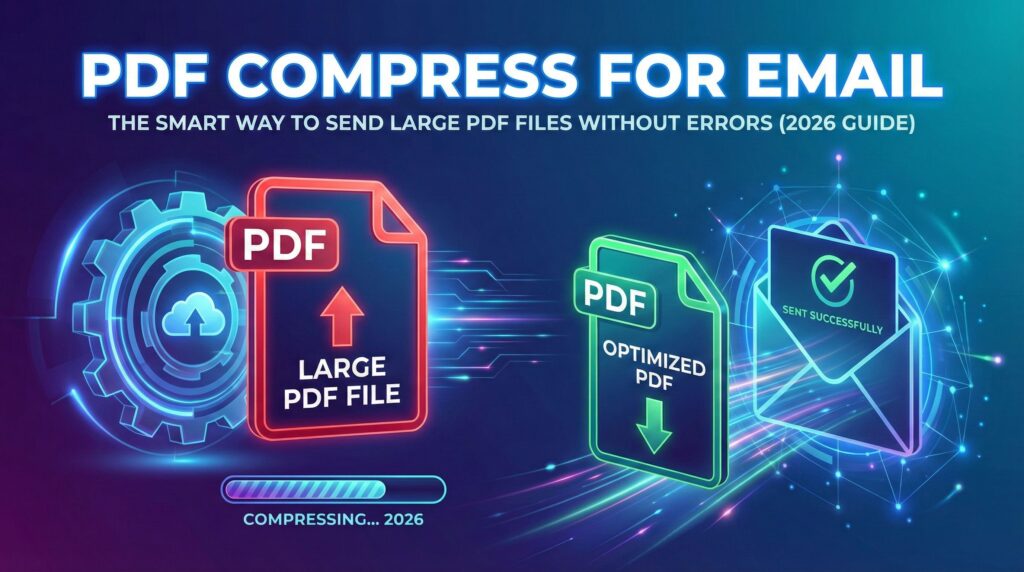
Have you ever tried to send a PDF through email and received an error saying the file is too large?
It’s a common frustration. You prepare a report, contract, resume, or scanned document — and when you try to attach it, your email refuses to send. Most email platforms have strict attachment limits, which means large PDF files must be reduced before sending.
In this guide, you’ll learn the smart and safe way to PDF compress for email, without damaging document clarity or professionalism.
Why Email Services Reject Large PDF Files
Every email provider sets a maximum attachment size to maintain speed and server performance.
Here are common limits:
- Gmail – 25MB
- Outlook – 20MB
- Yahoo Mail – 25MB
- Many corporate email systems – 10MB to 20MB
If your PDF exceeds these limits, your message will not be delivered. Even worse, some corporate systems silently block large attachments.
That’s why compressing your PDF before sending is often necessary.
Real-Life Scenario: Why Compression Matters
Imagine you are applying for a job and need to send:
- Resume
- Portfolio
- Certificates
Your portfolio PDF is 18MB because it contains high-quality images. The HR email system only allows 10MB attachments.
Instead of splitting files or risking rejection, you can simply compress the PDF for email and reduce it to 6MB–8MB while keeping it readable.
This saves time and keeps your communication professional.
What Makes a PDF File So Large?
PDF size increases mainly because of:
- High-resolution images
- Scanned documents (300–600 DPI)
- Embedded fonts
- Uncompressed graphics
- Multiple pages
- Hidden metadata
For example, a scanned 15-page document can easily become 30MB if scanned at high resolution.
How to PDF Compress for Email (Step-by-Step Method)
You don’t need technical knowledge. Just follow these simple steps:
Step 1: Choose a Reliable PDF Compression Tool
Select a secure online tool that does not store files permanently.
Step 2: Upload Your PDF
Drag and drop your file or select it from your device.
Step 3: Select Compression Level
Most tools offer options like:
- Basic compression
- Recommended compression
- Strong compression
For email attachments, recommended compression usually works best.
Step 4: Download the Optimized File
Once processed, download the reduced-size PDF.
Now attach it to your email and send without errors.
How Much Can a PDF Be Reduced?
Compression results depend on content type:
- Text-based PDF → Can reduce up to 70%
- Image-heavy PDF → 40%–60% reduction
- Scanned document → Significant reduction possible
Example:
25MB file → 7MB after compression
12MB file → 3MB after optimization
Results vary, but most PDFs shrink considerably.
Does Compression Reduce Quality?
This is the biggest concern for professionals.
When you properly PDF compress for email:
- Text remains sharp and readable
- Images may slightly reduce in detail
- Overall layout stays intact
If document quality is extremely important (legal contracts, design proofs), use moderate compression instead of maximum compression.
Best Practices Before Sending Compressed PDF
After compression:
✔ Open the file and check readability
✔ Zoom in to inspect text clarity
✔ Ensure signatures and stamps are visible
✔ Verify page formatting
Never send a compressed file without previewing it.
Compress PDF for Email on Mobile Devices
Modern compression tools work directly in mobile browsers.
You can:
- Compress PDF on Android
- Compress PDF on iPhone
- Reduce file size on tablet
This is helpful when you need to send urgent documents while traveling.
When Should You Compress Instead of Using Cloud Sharing?
Sometimes people upload large PDFs to Google Drive or Dropbox and send links instead.
However, direct attachment is better when:
- Sending official documents
- Applying for jobs
- Sending invoices
- Sharing contracts
- Submitting assignments
In these cases, it’s better to PDF compress for email and send the file directly.
Security Considerations
Before uploading your PDF to any tool, check:
- Website uses HTTPS
- Clear privacy policy
- Files are deleted automatically
- No permanent storage
Sensitive documents like contracts, bank statements, and ID proofs should only be uploaded to trusted platforms.
Common Mistakes People Make
Avoid these errors:
❌ Compressing the same PDF multiple times
❌ Choosing maximum compression blindly
❌ Using unknown or suspicious websites
❌ Sending unreadable files
Repeated compression can severely reduce quality.
Prevent Large PDF Files From the Start
If you’re creating a PDF:
- Scan at 150–200 DPI
- Use grayscale instead of color
- Compress images before inserting
- Remove unnecessary pages
- Avoid oversized graphics
Preventing file bloat saves time later.
Benefits of Compressing PDF Before Emailing
✔ Faster upload speed
✔ Faster recipient download
✔ Reduced bounce-back errors
✔ Professional communication
✔ Better inbox compatibility
Smaller attachments improve workflow efficiency.
Frequently Asked Questions
How do I use PDF Compress for Email to fit Gmail attachment size limit?
To use PDF Compress for Email, upload your file to a trusted compression tool and reduce the size below Gmail’s 25MB attachment limit. After compression, download the optimized file and attach it to your email without any size error.
What is the maximum file size allowed when using PDF Compress for Email?
When using PDF Compress for Email, the final file should usually be under 20MB–25MB, depending on your email provider like Gmail, Outlook, or Yahoo Mail.
Can I PDF Compress for Email to reduce a file under 10MB?
Yes, you can PDF Compress for Email to bring the file size under 10MB, especially if the document contains images or scanned pages. Stronger compression settings help achieve smaller sizes.
How does PDF Compress for Email reduce file size without losing quality?
PDF Compress for Email tools use smart optimization techniques that reduce image resolution slightly and remove unnecessary data while keeping text clarity and formatting intact.
Why is my file still large after using PDF Compress for Email?
If your PDF includes high-resolution images or multiple graphics, even PDF Compress for Email may not reduce it drastically. In such cases, using stronger compression or converting images to grayscale can help.
Is PDF Compress for Email safe for confidential documents?
Most PDF Compress for Email tools are safe if they use HTTPS encryption and automatically delete uploaded files after processing. Always choose a trusted and secure platform.
Can I PDF Compress for Email multiple files at once?
Yes, some PDF Compress for Email tools support batch processing, allowing you to compress multiple documents at the same time for faster email sharing.
Does PDF Compress for Email change formatting or layout?
No, a reliable PDF Compress for Email tool keeps the original layout, fonts, and structure unchanged while reducing file size.
Can I use PDF Compress for Email on mobile devices?
Yes, you can easily PDF Compress for Email on Android or iPhone using an online browser-based tool without installing any app.
What is the best compression level in PDF Compress for Email for business documents?
For business documents, choose medium compression in PDF Compress for Email to maintain professional quality while meeting email attachment limits.
Final Thoughts
Large attachments can slow down communication and cause email delivery failures. Instead of facing size errors, the smarter approach is to PDF compress for email before sending.
With the right method, you can reduce file size while keeping text clear and professional. Whether you’re sending resumes, invoices, reports, or contracts, compressing your PDF ensures smooth and reliable delivery.
Start optimizing your PDFs today and avoid attachment size problems forever.